
App settings
Configure saving, scripts, themes, proxying, shortcuts, updates, support, and local data handling.
Open app settings from the gear at the bottom of the activity rail — the strip of icons on the far left — or with the Settings keyboard shortcut. The search field filters the settings navigation and the cards shown on the General tab.
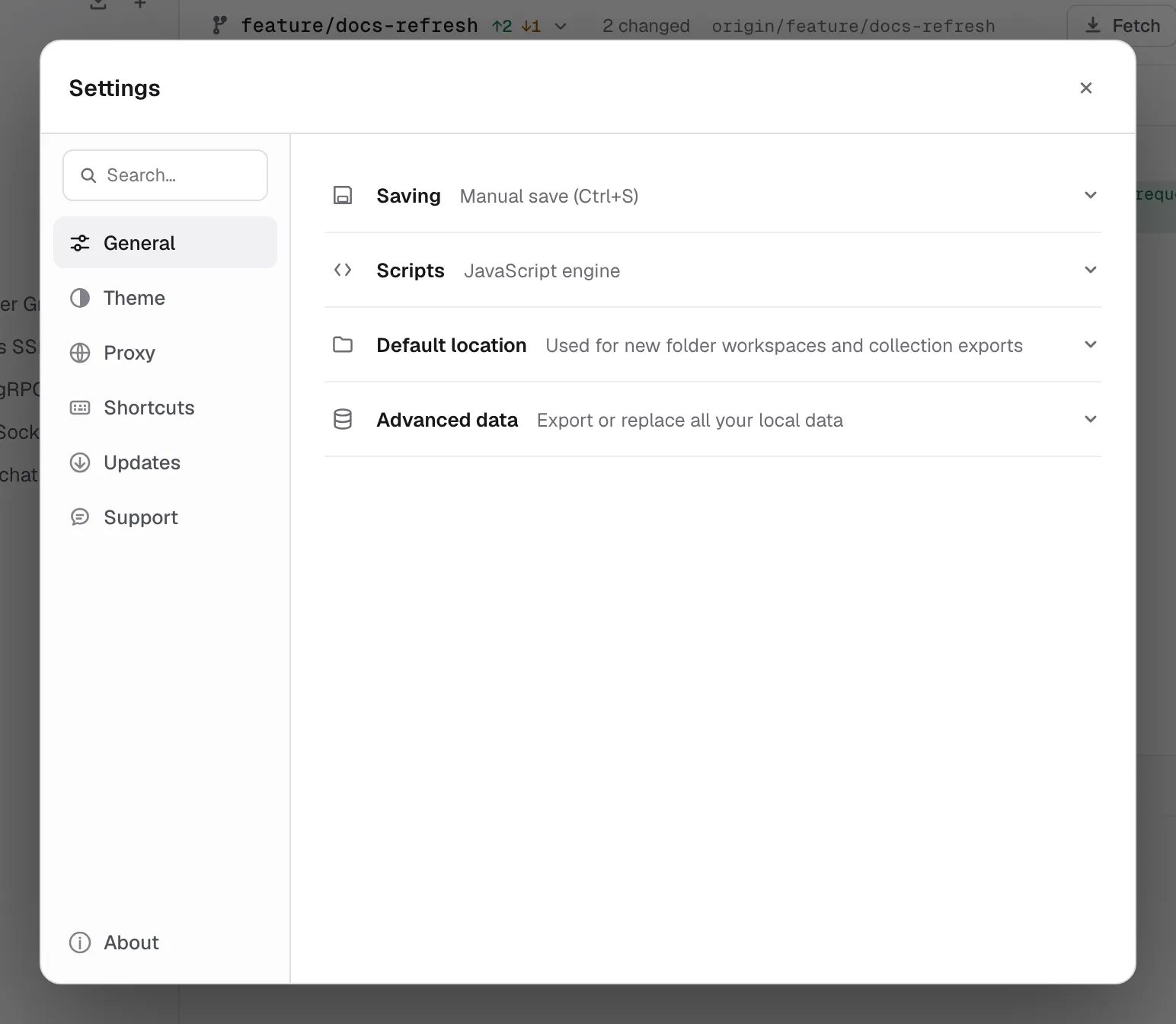
App settings are different from the settings attached to API data:
| Scope | Where to edit | What it affects |
|---|---|---|
| App | Activity rail -> gear | Relay on this device: saving mode, theme, global proxy, shortcuts, updates, and local preferences. |
| Collection | Collection menu -> Settings | Defaults applied to requests in that collection. |
| Request | Open request -> Settings tab | Transport and protocol behavior for one request. |
See Collection defaults and Per-request settings for the other two scopes.
General
Saving
Choose one of two modes:
- Autosave saves request and collection edits automatically.
- Manual save keeps edits dirty until you click Save or use the save shortcut. A dot on the request tab marks unsaved work.
In manual-save mode, an all-data export contains the last saved version of each request, not unsaved editor changes. Relay warns you before exporting when dirty requests exist.
On launch
Choose the screen Relay opens on:
| Option | What you see |
|---|---|
| Request editor (default) | Your open tabs on the request editor. With no requests yet, a new unsaved HTTP request. |
| Where you left off | The last screen of the previous session — Git, the runner, a collection, an environment or the overview. |
| Workspace overview | Collections, recent history and storage for the active workspace. |
Your open tabs come back in every mode; only the screen in front changes. A workspace that needs attention, such as a missing folder or broken YAML, opens where you can fix it whatever this is set to.
Script engine
Choose JavaScript for Postman-style scripts or Tengo for the legacy lightweight engine. The selection controls which script fields Relay displays and runs.
Each request and collection keeps separate JavaScript and Tengo source. Switching engines does not delete the script stored for the other engine.
See Scripting for runtime behavior and examples.
Default location
The default location is the starting directory for:
- New folder-backed workspaces.
- Collection exports that ask for a destination folder.
Changing it does not move existing workspaces or repositories.
Advanced data
Export all data creates a Relay-to-Relay JSON backup. Import all data replaces the current local profile after confirmation.
Read Backup & recovery before using the import action.
Theme
Choose Light, Dark, or System, then select separate light and dark variants. Each variant is shown as a miniature of Relay in its own colours — sidebar, request bar, a table and a highlighted response — so you can compare them before switching. System mode follows the operating-system appearance and uses the matching selected variant.
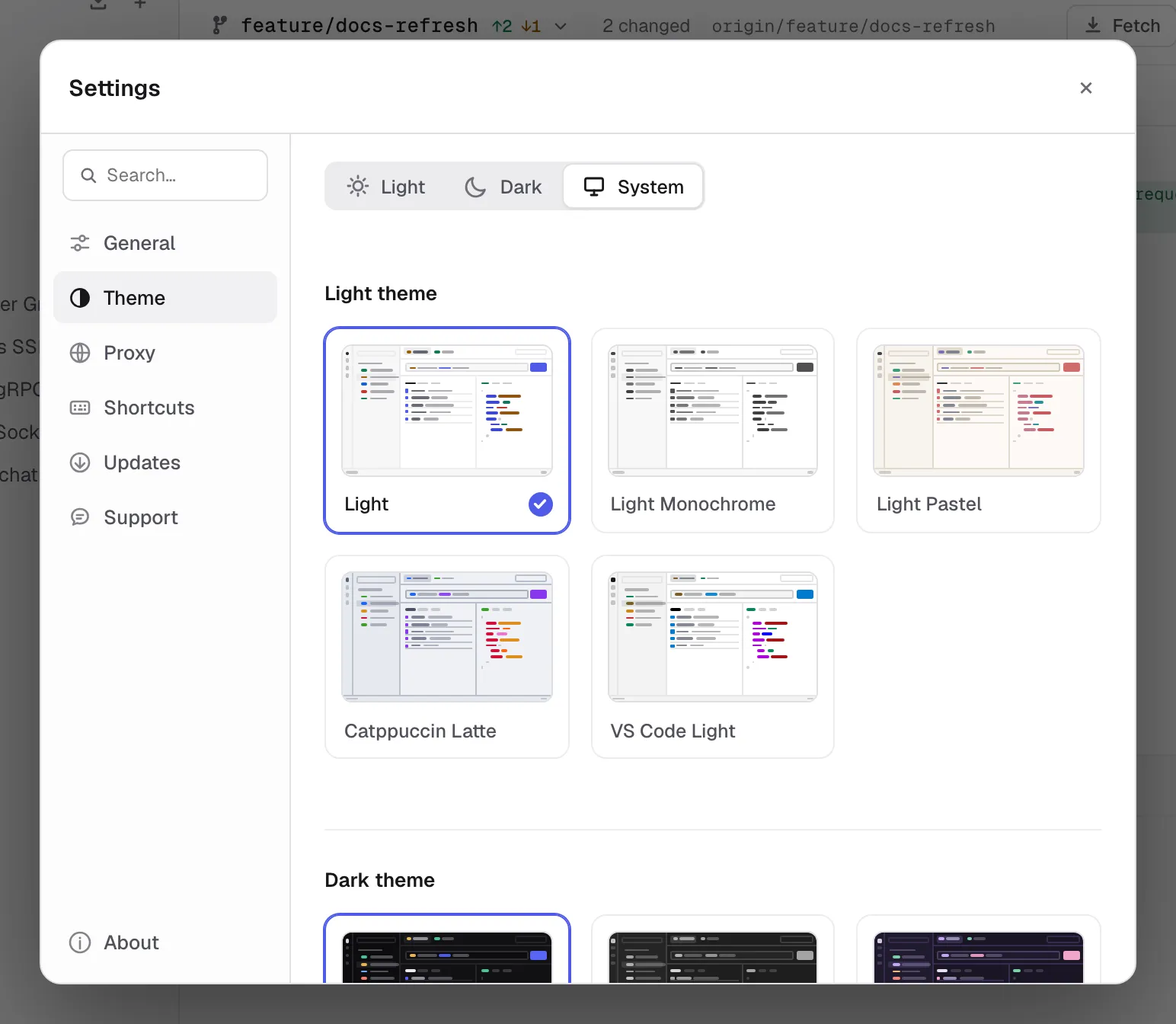
Theme preferences apply only to Relay’s UI; they do not change generated code, request headers, or response rendering.
To make the whole interface larger or smaller, use zoom rather than a setting: Cmd/Ctrl = and Cmd/Ctrl - step from 80% to 150%, Cmd/Ctrl 0 returns to 100%. On macOS the same commands are in the View menu, and the command palette has Zoom in, Zoom out and Reset zoom. The size is stored on this device.
Proxy
The Proxy tab configures the fallback used across requests on this device. Request and collection proxy URLs can override it.
See Proxy configuration for precedence, authentication, bypass rules, and the difference between Off, On, and System modes.
Shortcuts
Click a command and press the desired key combination. Individual shortcuts and the complete set can be reset to their defaults.
The current command list and default bindings are documented in Keyboard shortcuts.
Updates
Release builds can:
- Check for an update.
- Show release notes.
- Download and install the selected build.
- Restart Relay to apply it.
When the background check finds a release, a notice in the lower-right corner says so; View opens this tab, where the new version’s notes are shown and Install update downloads it.
Development builds created with make dev or go run do not use the release updater.
The About tab also has Automatically install updates. When enabled, Relay performs the background check, installs a discovered release, and asks you to restart. The setting is disabled in development builds.
What’s new
The first time Relay starts after updating to a new version, it opens a What’s new screen with that release’s notes. It appears once per version: relaunching the same build, downgrading, and a first-ever install all stay quiet — a brand-new user has nothing to catch up on.
You can reopen it any time from About → What’s new. The notes are bundled with the build, so the screen works offline and always describes the version you are actually running.
Support and About
Support opens Relay’s public issue tracker for bugs and questions, copies a diagnostics summary (version, platform, Git and storage state) to paste into an issue, and opens the folder holding relay.log. About shows the installed Relay version and platform; include both when reporting a problem.
For common failures, start with Troubleshooting.