
Workspaces & collections
How Relay organizes your requests — workspaces, collections, folders, drag-and-drop, and starred favourites.
Relay arranges your requests in a workspace -> collection -> folder tree:
Workspace└─ Collection ├─ Folder │ ├─ Subfolder │ │ └─ Request │ └─ Request └─ RequestUse workspaces to separate unrelated work (personal · day-job · client X), collections to group requests by API or domain (Stripe v2024 · internal billing), and folders/subfolders to slice a large collection by feature, version, or test scenario.
Workspaces
A workspace is the top-level container. Everything inside it — collections, environments, request history, cookie jar — is scoped to that workspace and invisible to the others.
Creating a workspace
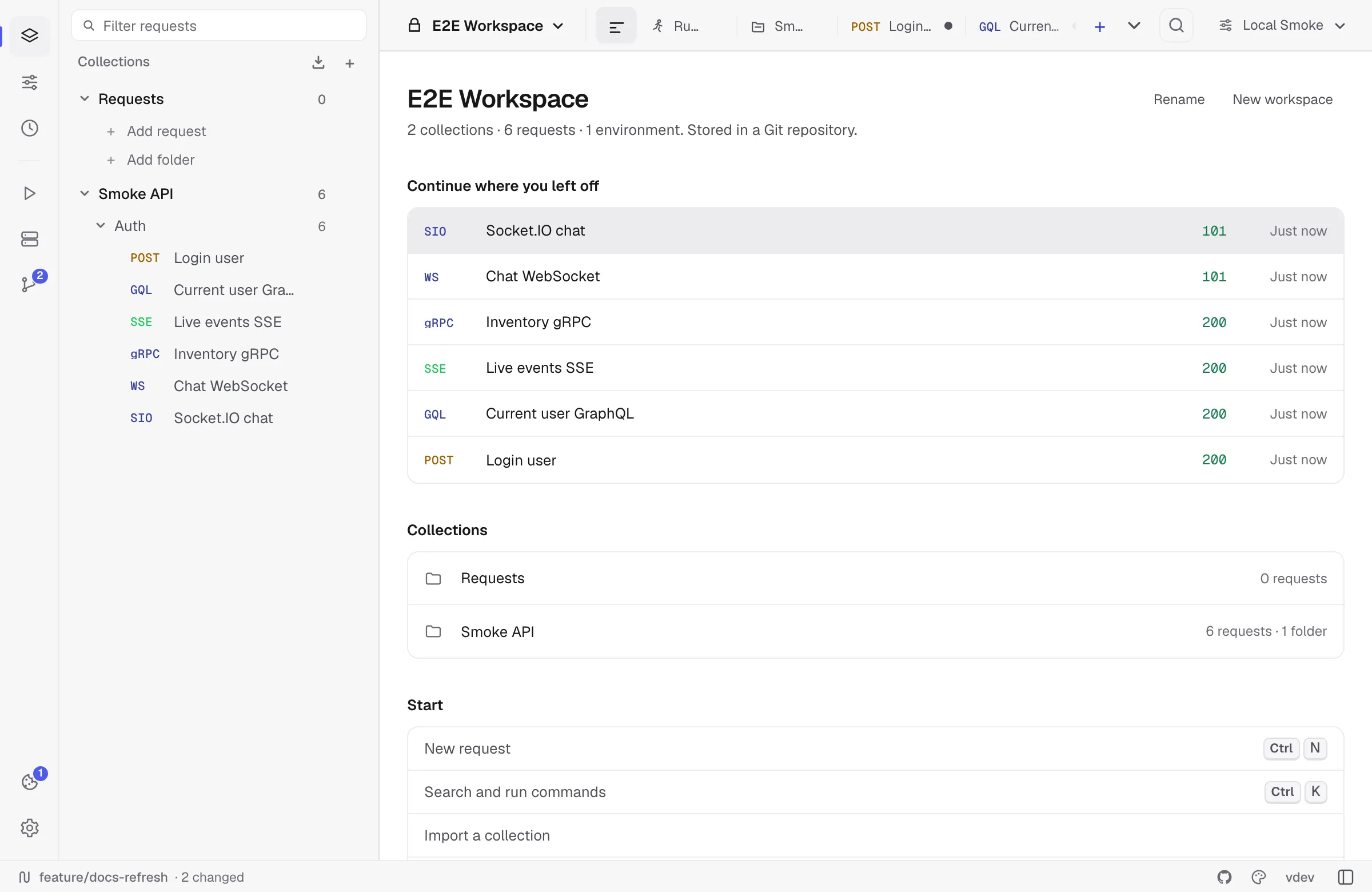
Click the workspace name in the title bar and choose + New workspace. Pick a short name; you can rename it any time via the same menu.
Switching workspaces
The same dropdown shows all workspaces with their request counts. Switching is instant — Relay keeps each workspace’s open tabs, active environment, and last-viewed request restored separately.
Workspace overview
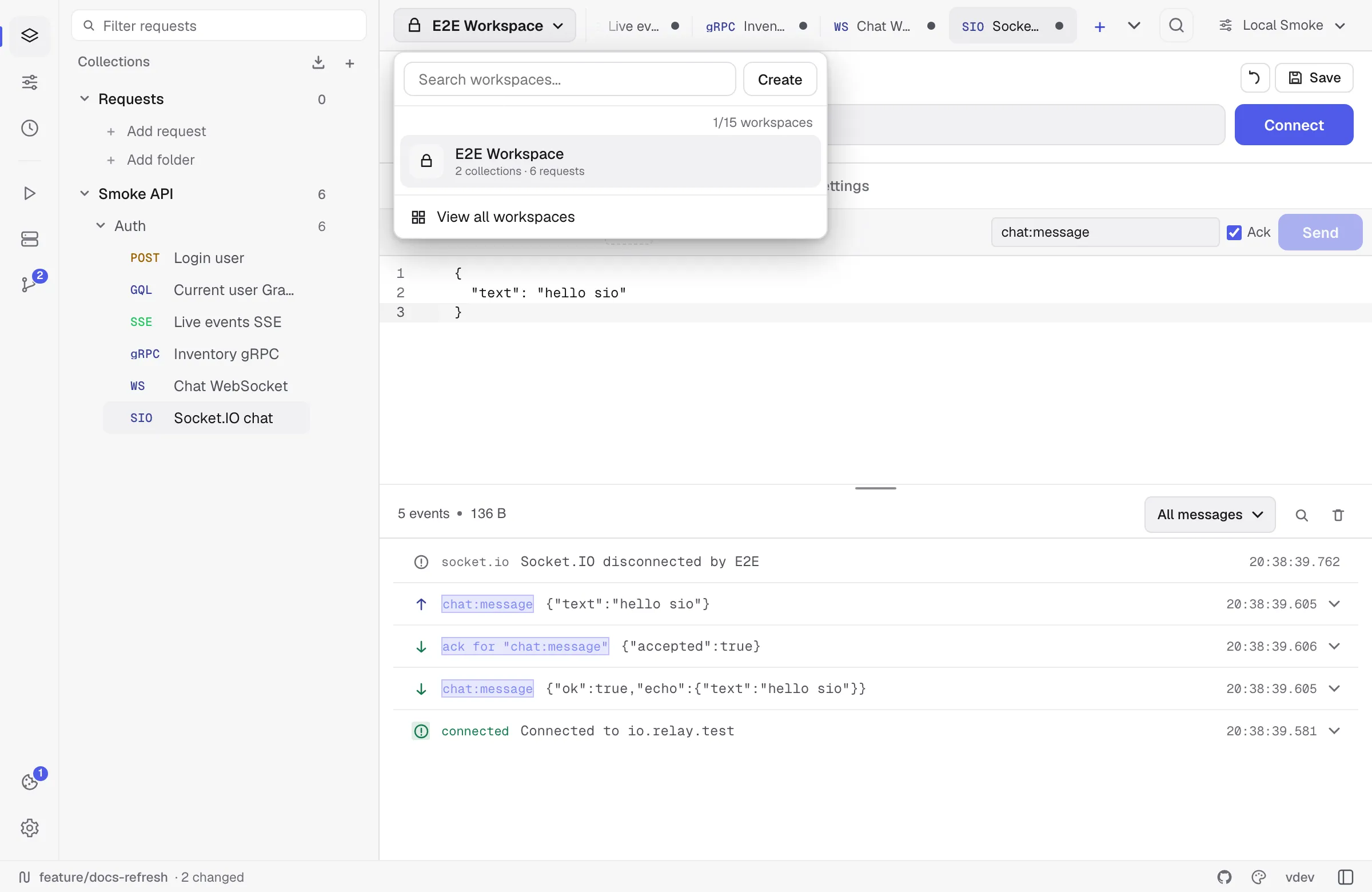
If no request is open, the workspace overview is shown. Under the workspace name — with how many collections, requests and environments it holds, and whether it lives in a Git repository — it lists:
- Continue where you left off — the last requests you sent from this workspace, newest first, with the status each one got. Click one to open it. Requests you have since deleted are left out.
- Collections — every collection with its request and folder count. Click one to open its settings.
- Start — new request, search, import, new collection, new environment, run a collection and keyboard shortcuts, with the shortcut shown where there is one.
- Notes — freeform text saved with the workspace. Useful for base URLs, auth hints, conventions or onboarding pointers for teammates.
A workspace with nothing in it yet shows a short first-run panel instead: start a new request (paste a URL or a whole cURL command) or import a collection from Postman, Insomnia, OpenAPI, Bruno / OpenCollection or HAR.
Collections
A collection groups related requests inside a workspace. There’s no maximum — you can have hundreds of small collections or a few large ones.
Creating a collection
- Sidebar header → + (the plus button)
- Workspace overview → Start → New collection
- Right-click anywhere in the empty sidebar area → New collection
- Empty-state CTA when a workspace has no collections yet
Each collection has a name, a filesystem name (auto-derived for Git sync), and child folders/requests. Inline rename: double-click the collection title in the sidebar.
Collection menu
The ⋯ button next to a collection reveals:
- Add request / Add folder — quick creators that drop new items into this collection
- Run collection — opens the Collection Runner with every runnable request inside. Useful for smoke-testing a whole API surface in order.
- Rename — opens the same inline editor as double-click.
- Export collection — writes a Postman, OpenAPI, or OpenCollection export to a file of your choice.
- Delete — destroys the collection and everything inside it. Asks for confirmation.
Drag-and-drop reorder
Hover the ⋮⋮ handle on the left of a collection row to grab it. Drag onto another collection — drop above (top half) or below (bottom half) to set the new position. Order persists between sessions.
Drag-and-drop is disabled while a search is active in the sidebar (the order you see is sorted by relevance, not user order).
Folders
Folders are optional. They’re useful when a single collection has too many requests to scan quickly.
Creating a folder
- Collection
⋯menu → Add folder - Inside a folder, the folder’s
⋯menu → Add subfolder
Folders can nest up to 4 levels deep (a cap to keep the tree usable). Empty folders are preserved, so creating a folder does not force you to create a request immediately. Each folder caps at 50 requests before you should split it; the + Request button is disabled once you hit that limit, with a tooltip explaining why.
Collection defaults
Open a collection workspace to configure reusable headers, variables, auth, scripts, tests, and transport settings. Requests can override headers and settings per field; auth is inherited only when the request uses Inherit auth. Active environment values override collection variables with the same key.
Defaults exist at the collection level, not the folder level. See Collection defaults for merge order, script order, reset behavior, and storage.
Folder menu
The ⋯ next to a folder offers:
- Add request — drops a new request inside this folder
- Add subfolder — creates a child folder
- Run folder — Collection Runner scoped to just this folder’s requests
- Rename — inline rename
- Delete — removes the folder and everything in it (with confirmation)
Requests
A request is the leaf of the tree. Each request has its own URL, method, headers, body, auth config, pre-request and test scripts, settings, and notes.
Creating a request
- Collection or folder
⋯menu → Add request - Workspace overview → Start → New request
- Drafts: + after the open tabs, then pick the request type. Drafts live in a special “scratch” area until you save them to a collection.
The request ⋯ menu
Right-click (or click the ⋯ button on hover) on any request to reveal:
- Rename — inline rename; double-click the title also works
- Duplicate — clones the request, including auth/headers/body/scripts
- Star / Unstar — pins the request to the Starred group at the top of the sidebar. Star count appears in the workspace header.
- Copy cURL — copies a runnable
curlcommand. Variables stay as{{name}}placeholders so the export doesn’t leak secrets. - Delete — asks for confirmation, then removes the request. If you deleted the only open tab, Relay switches to the workspace overview.
Drag-and-drop between collections
Hover a request to reveal its ⋮⋮ handle, then drag it into another collection or folder. The new parent is highlighted while you hover; drop to commit.
You can’t drag requests into a folder that’s reached the 50-request cap — Relay refuses the drop and shows a tooltip.
Starred (favourites)
Use Star to mark requests you reach for often. Starred requests appear in their own group at the top of the sidebar, above all collections, regardless of which collection they live in. Unstar from the same menu to remove them from the favourites group (the request itself stays in its collection).
The Starred group only appears when at least one request is starred and can be collapsed like a collection section.
Search
The sidebar search input filters requests by name, URL, and method as you type:
- Plain text matches request names and URLs
- Prefixing with
m:filters by method (m:POST users) - Filter is workspace-scoped — searching doesn’t leak between workspaces
Command palette
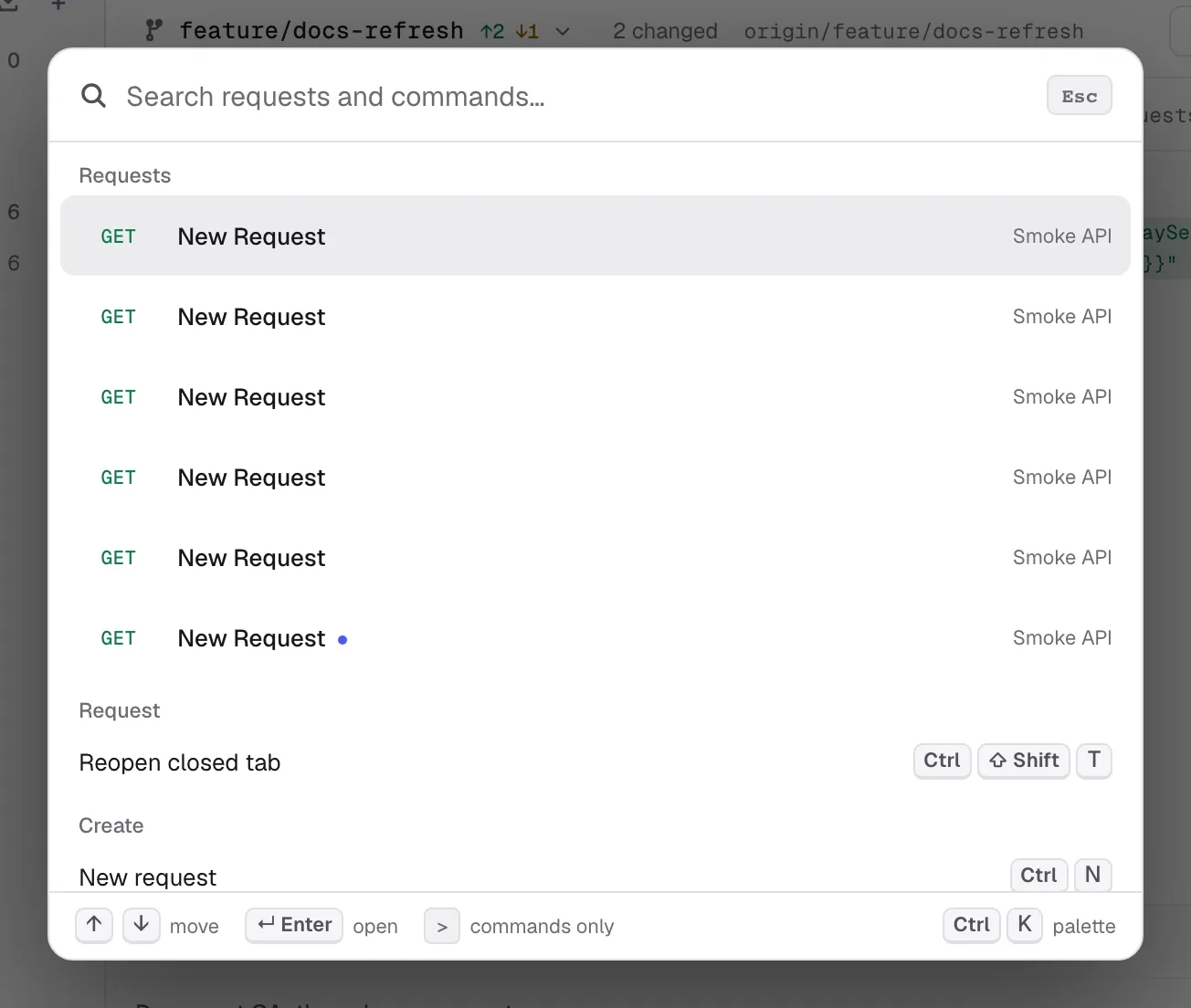
Press Cmd/Ctrl K — or click the search field in the title bar — to open the command palette. Type to search the saved requests of the workspace by name, URL, method, collection or folder; the same query also filters Relay’s commands:
- Request — send, save, edit the URL, duplicate, rename, copy as cURL, close or reopen a tab. Shown while a request is open.
- Create — a new request, collection or environment, or an import.
- Go to — collections, environments, history, globals, the collection runner, the mock server, Git, cookies, settings and proxy settings.
- View — show or hide the sidebar and the code snippet panel, put the response beside or below the request, switch between light, dark and system theme.
- Help — what’s new, reporting an issue, about Relay.
Start the query with > to list commands only. ↑ and ↓ move through the list, Enter runs the selection, Esc closes the palette. A command bound to a shortcut shows it, including one you reassigned in Settings → Shortcuts.
Empty states
When something is empty, Relay shows a hint so you’re never staring at blank space:
- No collections yet — sidebar onboarding with New collection / Import collection buttons
- Empty collection — inline + Add request / + Add folder rows inside the collection
- Empty folder — same pattern, nested one level deeper
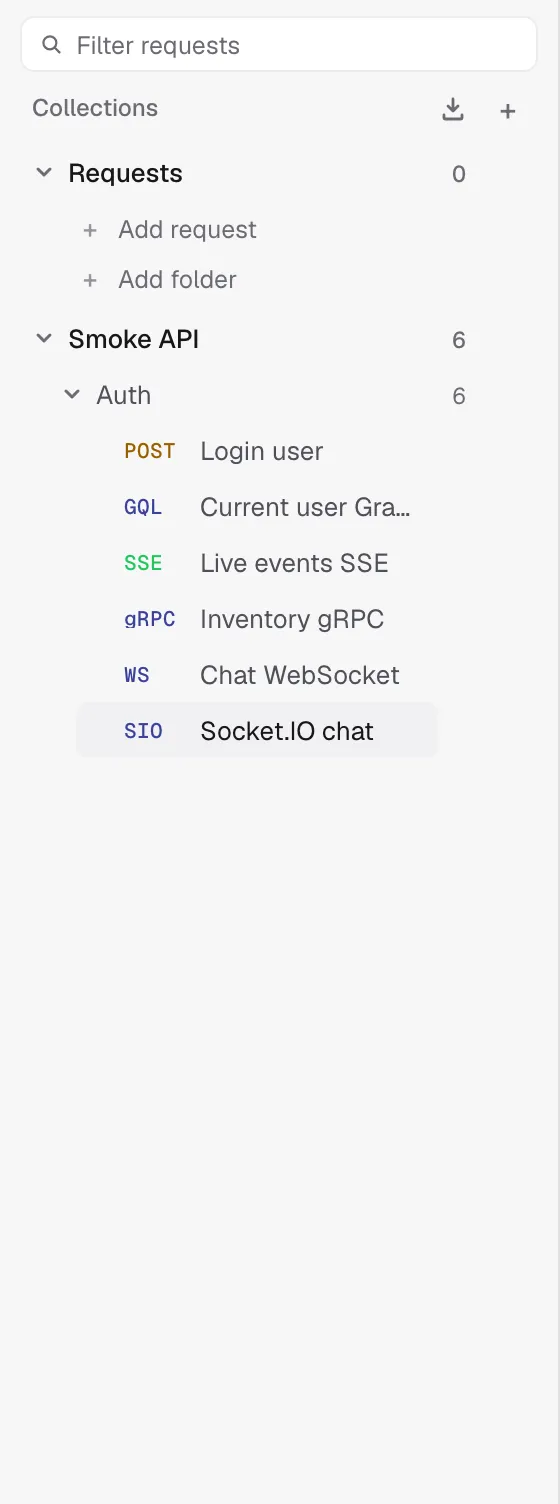
Once an item is added, the hint disappears.
Git storage
If the workspace is backed by a folder or Git repository, collections and folders are written to YAML files with explicit folderPaths, so empty folders survive round-trips through Git and OpenCollection export. See Git-backed workspaces for the full workflow.